- The inventory person needs first to fill out the printed inventory worksheet. Then he/she will transfer it to the Skalka Inventory v1 spreadsheet. The inventory person started to do the inventory around 1:45 PM PST and you can just start to check the inventory if the inventory person is done already (usually around 5 PM PST)
- Open “Skalka Inventory v1” and check if there are no missing inventory counts.
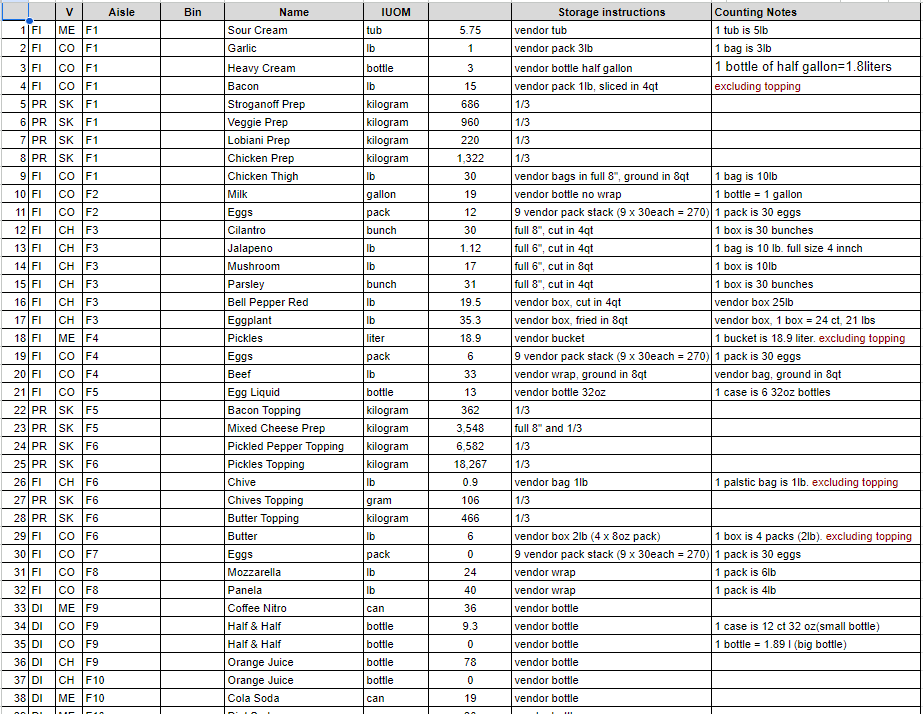
- If you see missing data or incorrect data, contact the team member who did the inventory and ask about the missing data.
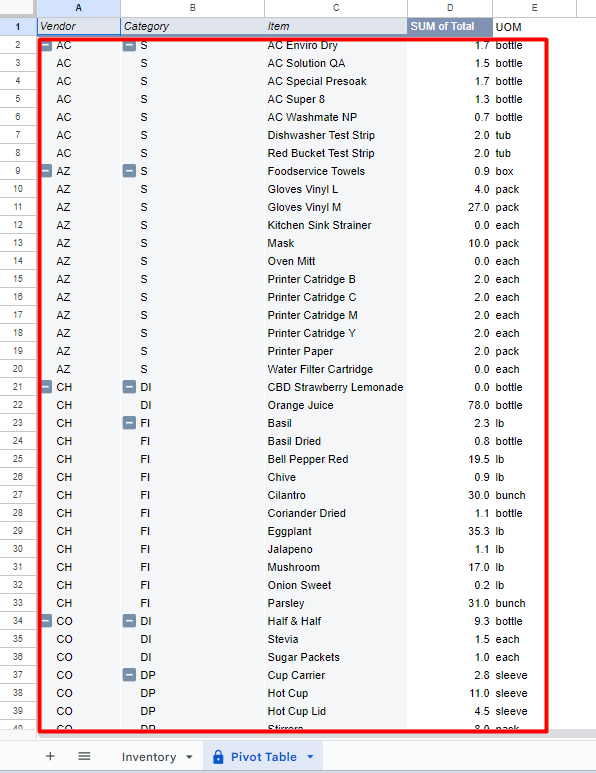
- If all are correct go to the below named “Pivot Table” and copy all the items in this tab.
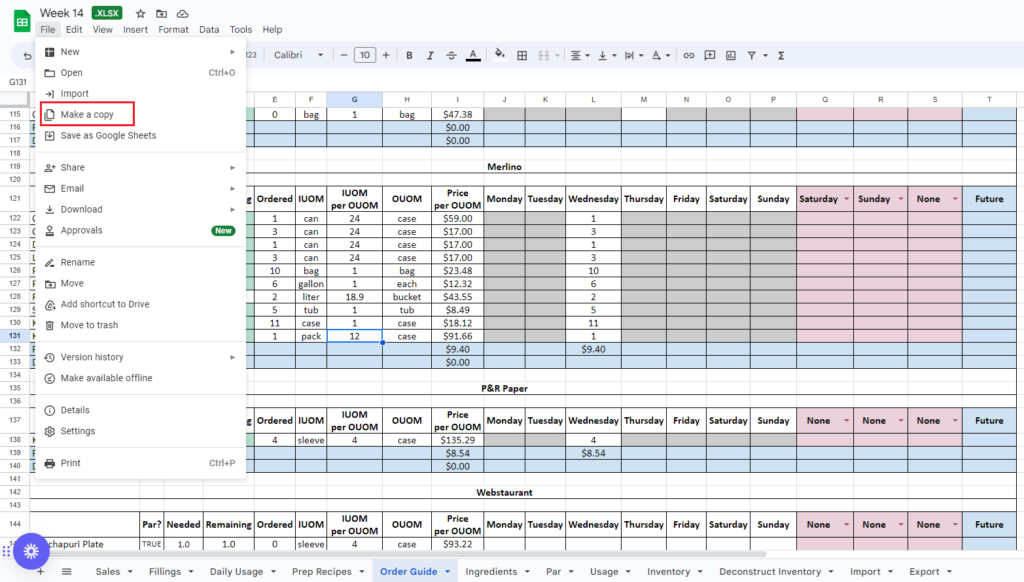
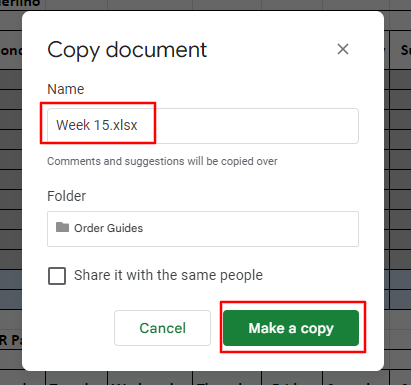
- Open the Order Guide spreadsheet to paste the copied inventory. Go to the shared drive. Open the “Skalka Ops” folder then look for the “Order Guide” folder. Click the latest Order Guide (ex. Week 14) spreadsheet in the Order Guide folder. To create a new order guide for a new week (ex. Week 15) make a copy of the previous order guide (Week 14) then rename it for the new week (Week 15)
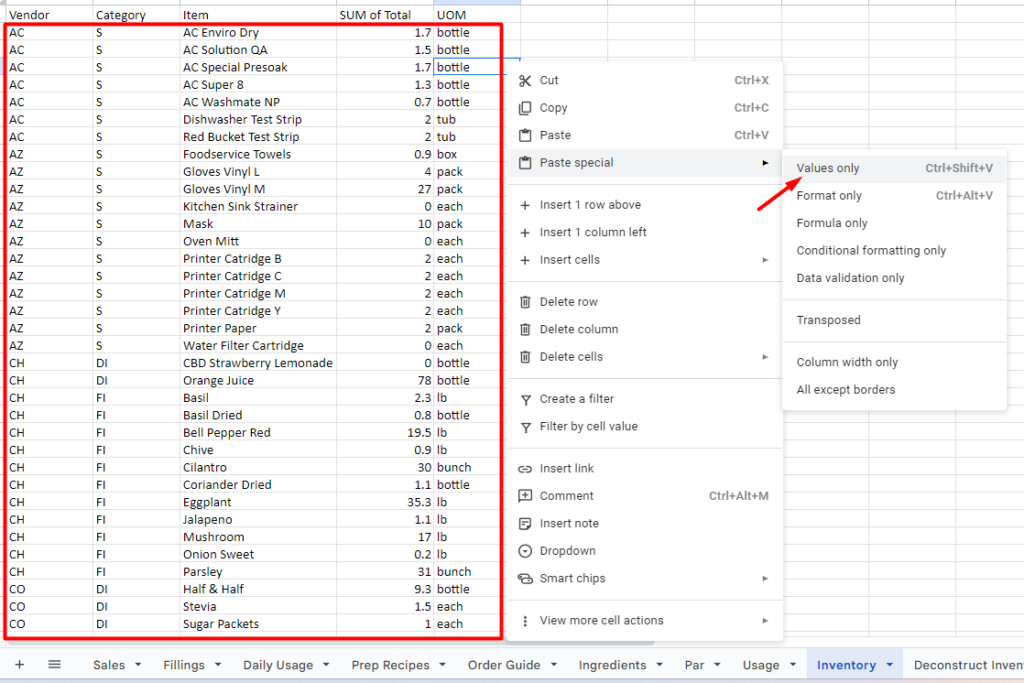
- Go to the “Inventory” tab then paste special as “Values only” the copied inventory in the Skalka Inventory v1
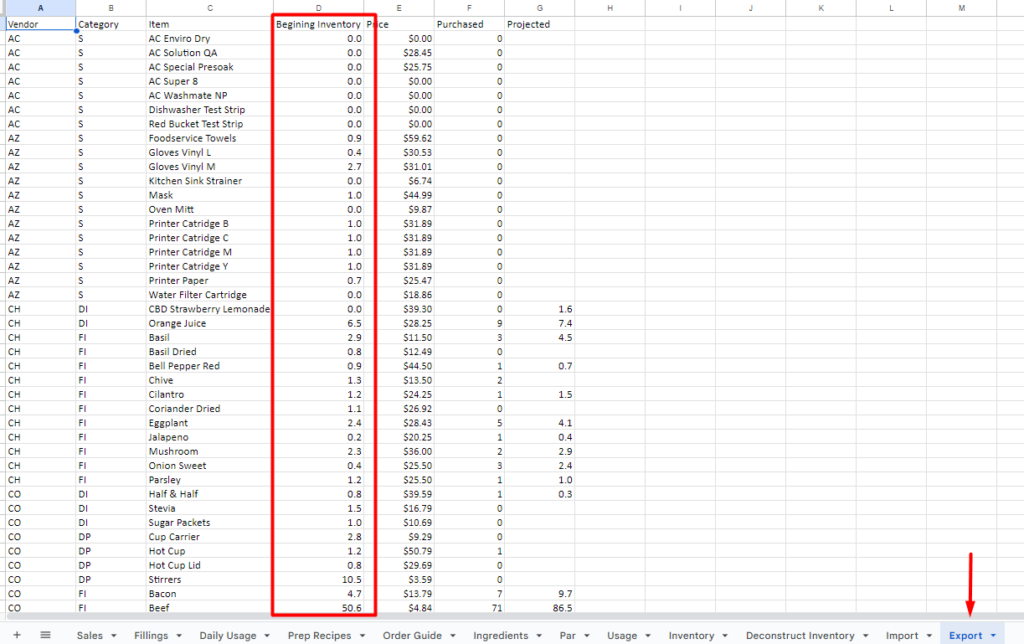
- Still, in the Order Guide, go to the “Export Tab” and then copy the “Beginning Inventory” column.
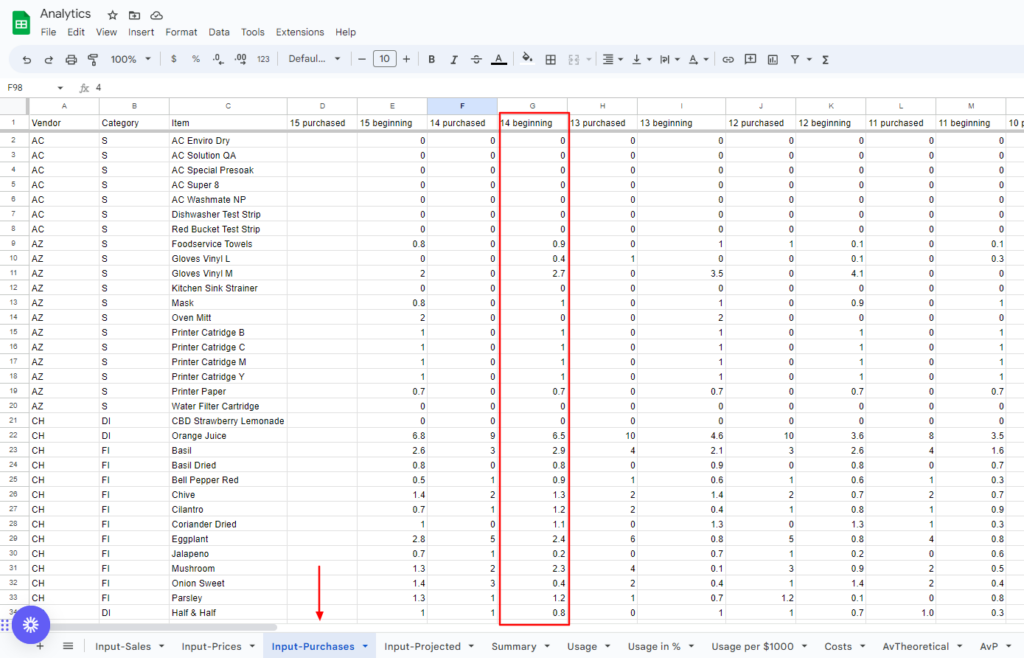
- Paste to the Analytics spreadsheets in the “Input-Purchase” tab and in the latest beginning week column. Ex. We are on week 14 so you will paste it in the 14 beginning column.
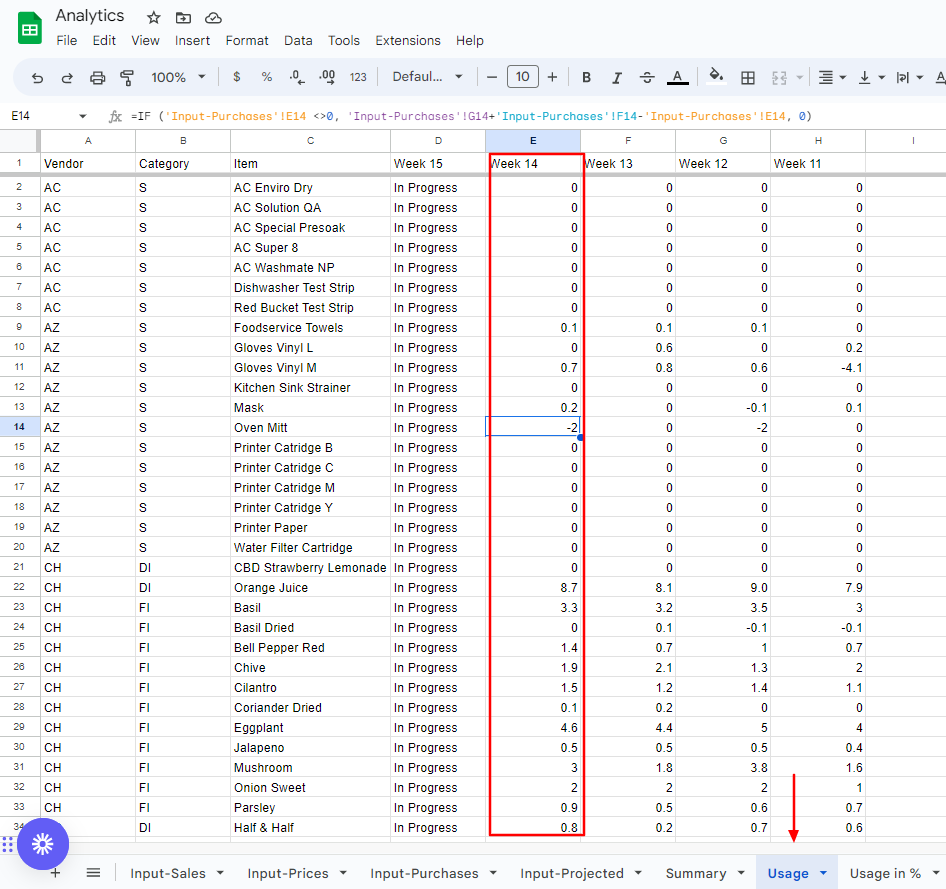
- Still, in Analytics, you need to check each ingredient in the “Usage” tab if the said inventory count is reliable, if there is something suspicious (negative usage or high usage), we need to recheck their count with the staff’s coordination in the restaurant.
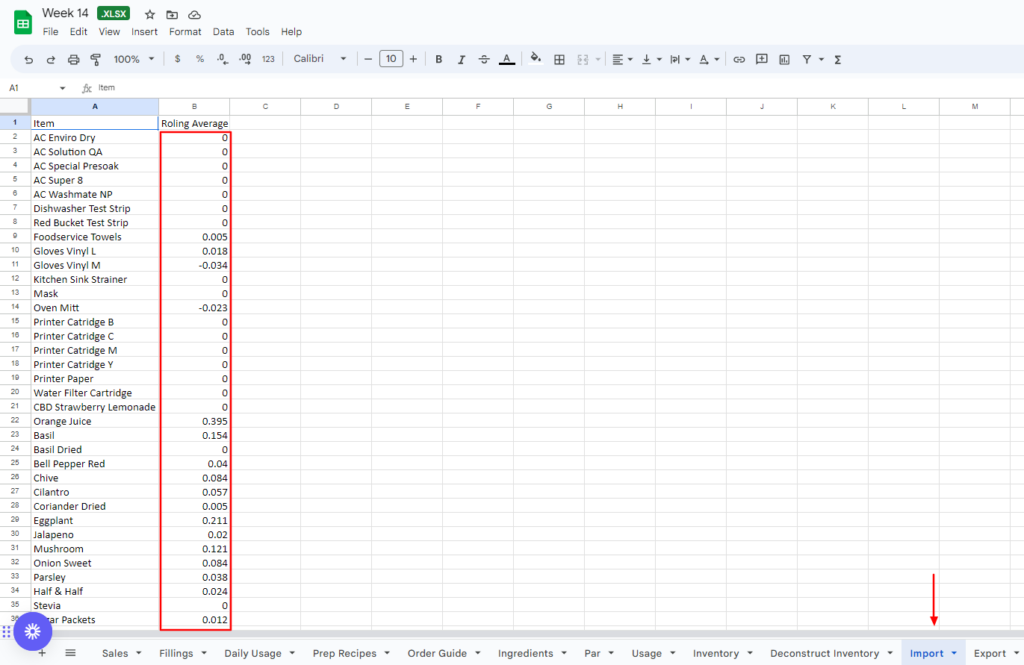
- After checking and making some adjustments (if there are any), copy the rolling average located in the “Usage per $1000” tab.
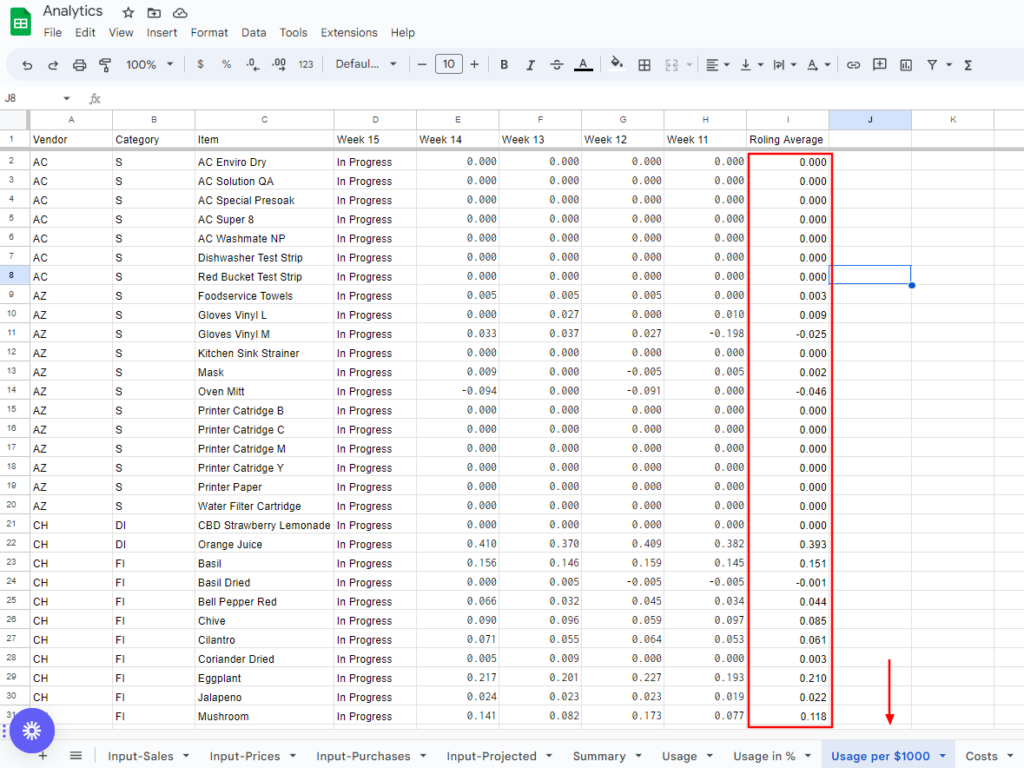
- Then paste it to the “Import” tab in the Order guide.