
Go to this link: https://www.hubspot.com/email-signature-generator
And here is what you will see. Select a template of your choice. For this tutorial, I will use Template 1
Note: Make sure that you turn off “Created With Hubspot”
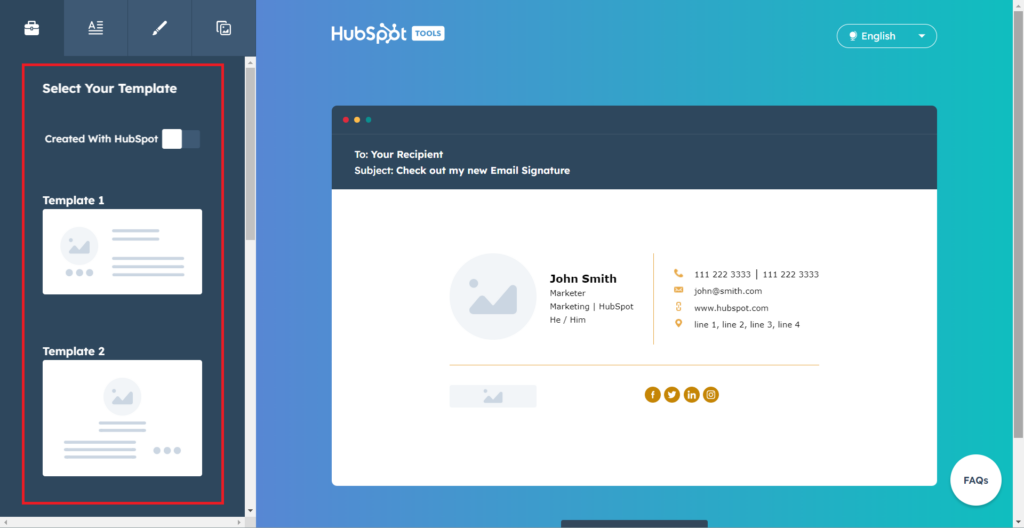
After you selected a template and made sure that the “Created with Hubspot” is off, click this
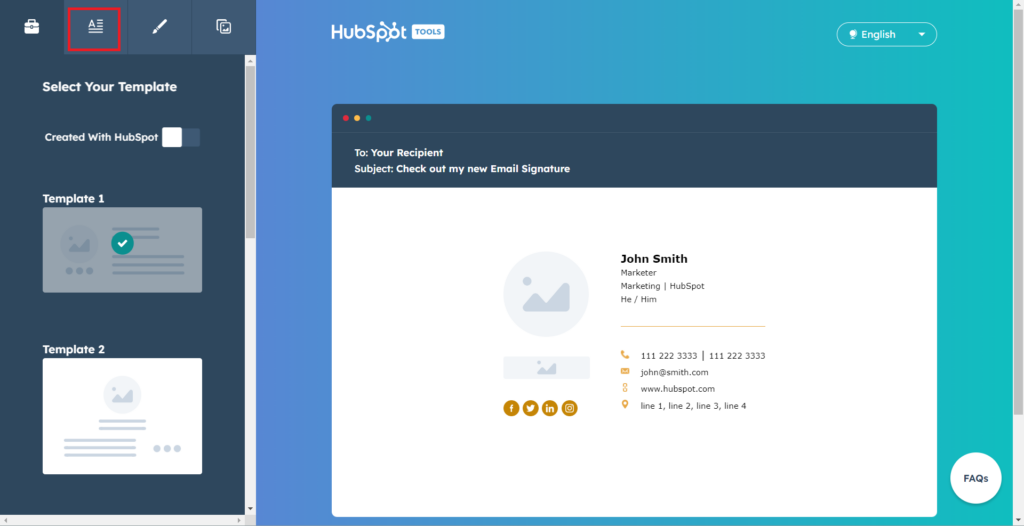
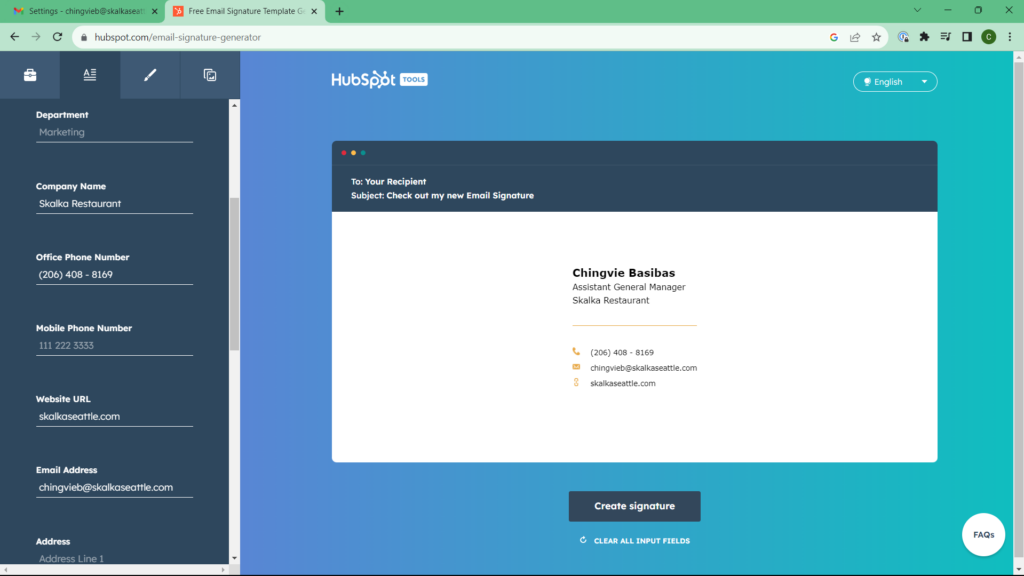
Enter your Signature Details on the left side
Note: If there are details that you do not have, you can skip them.
First Name:
Last Name:
Job Title: Assistant General Manager
Company name: Skalka Restaurant
Office Number: (206) 408 – 8169 – Skalka
Website Url: 1. skalkaseattle.com
Email Address: chingvieb@skalkaseattle.com
You can also refer to this video: https://www.loom.com/share/041750b06ca9464693ecf9732c2b365f
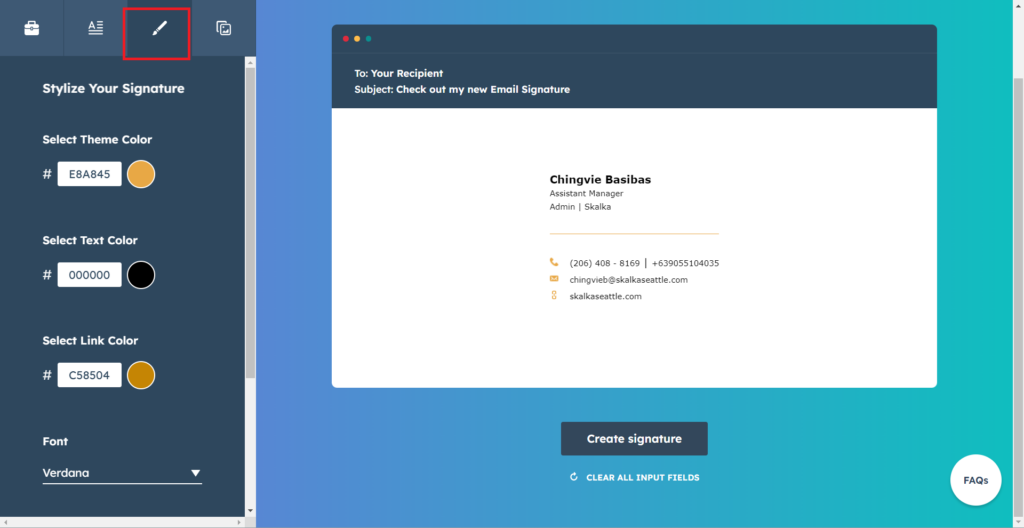
If you want to style your signature, you can go here and choose whatever color you want your signature to have. Then, click “Create Signature”
For Skalka:
Theme Color: E8A845
Text Color: 000000
Link Color: C58504
Font: Verdana
Font size: Medium
For Cake:
Theme Color: FE2AE9
Text Color: 000000
Link Color: B10AFF
Font: Verdana
Size: Medium
Afterward, click “Copy Signature”
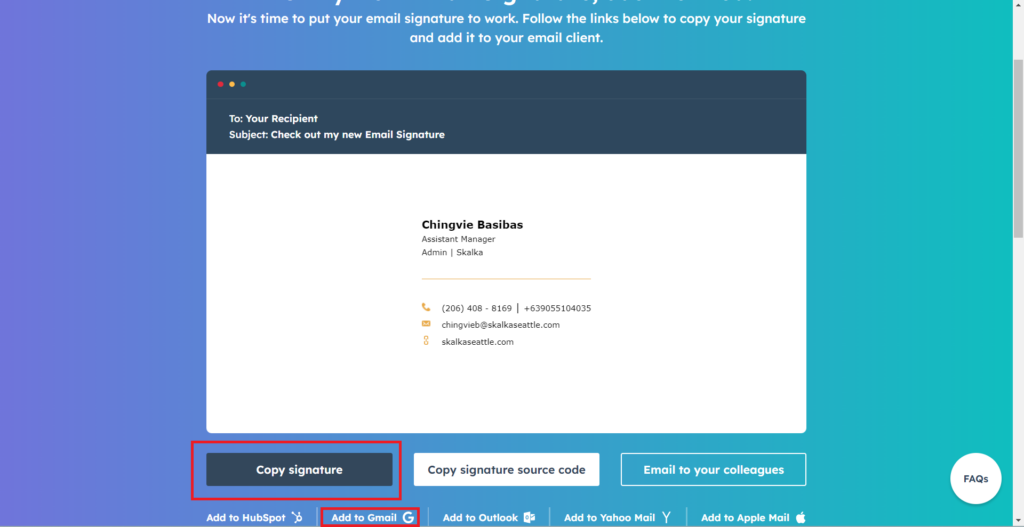
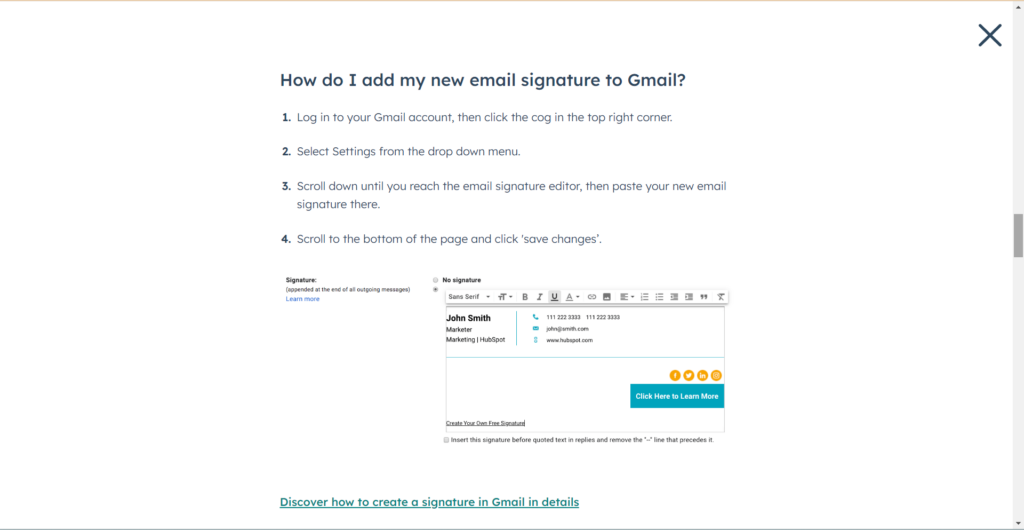
Note: When you click “Add to Gmail”, Hubspot will give you a set of instructions on how to add the signature to Gmail
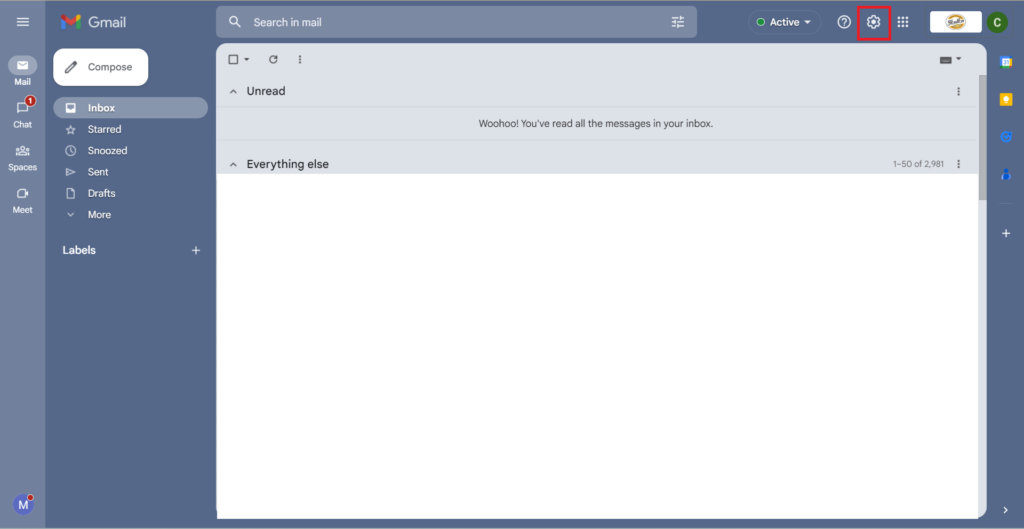
To add it to Gmail, let us log in to our Gmail account. Then, click the cog in the top right corner and select “Select all settings”
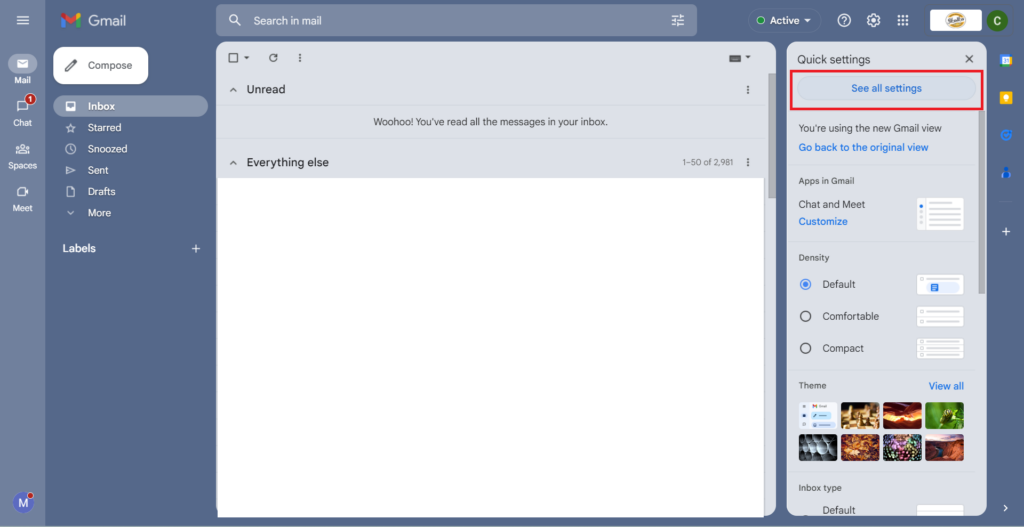
And here is what you will see:
Note: Make sure that you are in the General tab
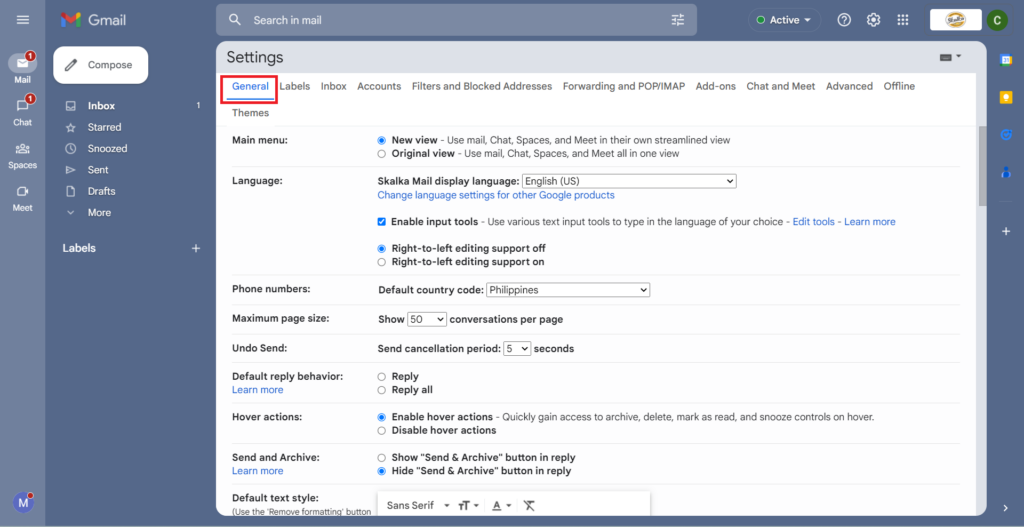
Scroll down to the bottom until you reach the “Signature”
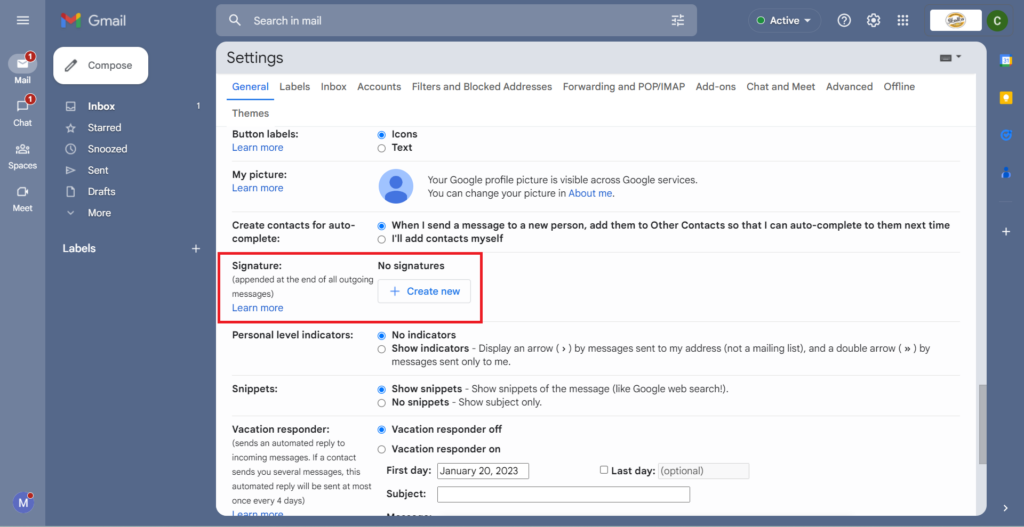
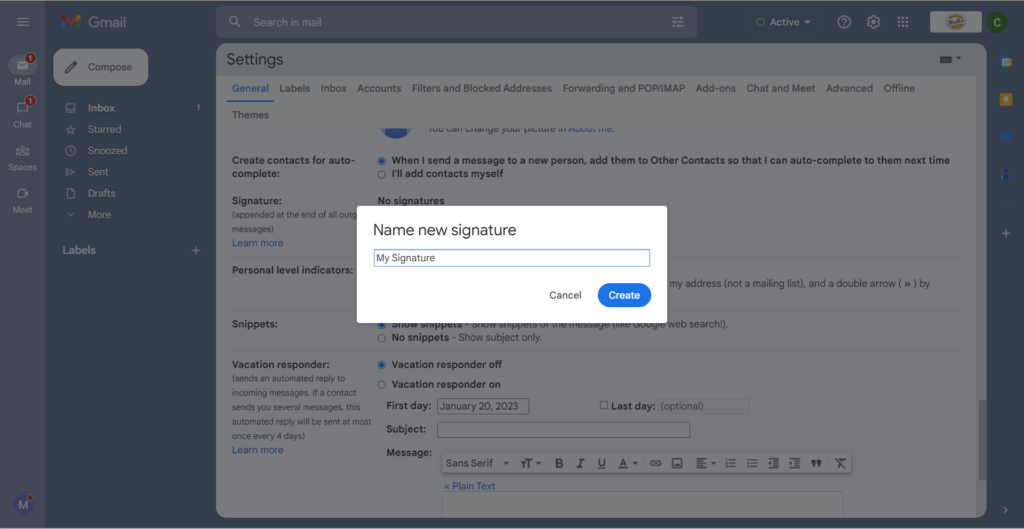
Click the “Create new” and name the signature that you made. For now, I will just put “My Signature”
Let’s paste the signature that we copied in Hubspot.
Note: Make sure that this is the “Signature Default”
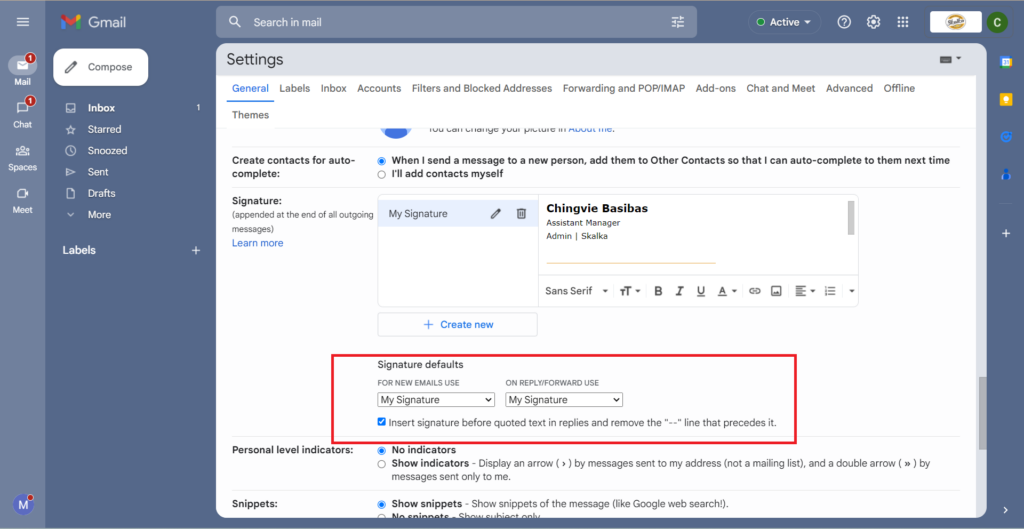
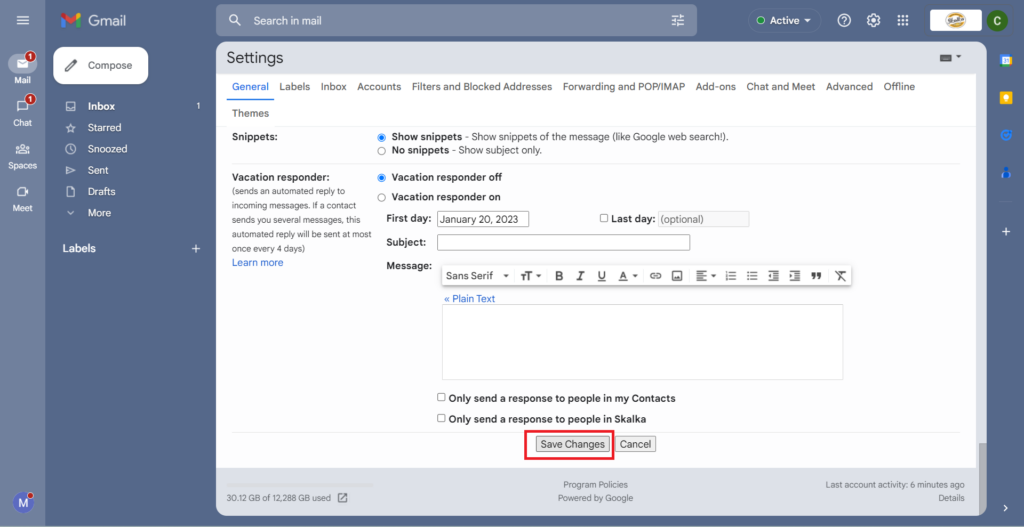
Then, click “Save changes”
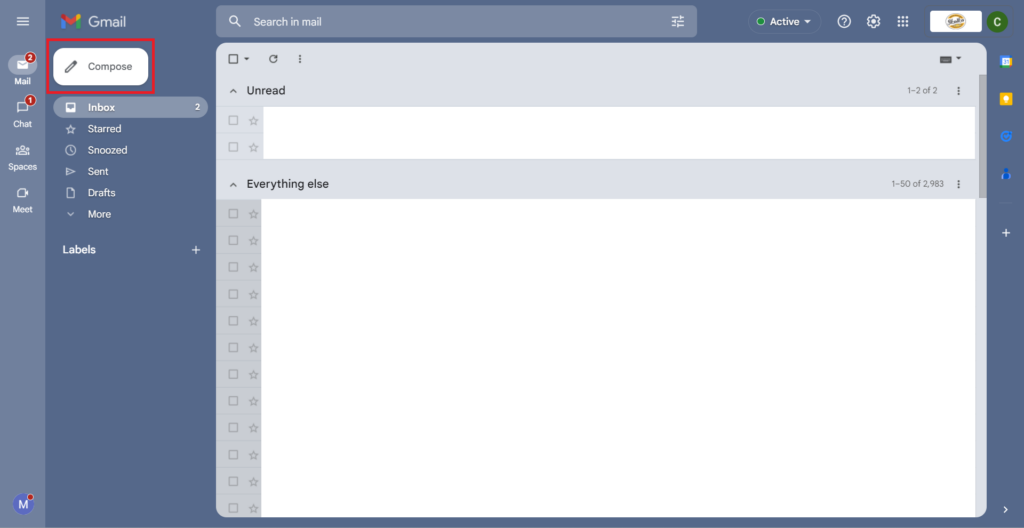
Click “Compose” in the upper left corner to know that the changes have been safe.
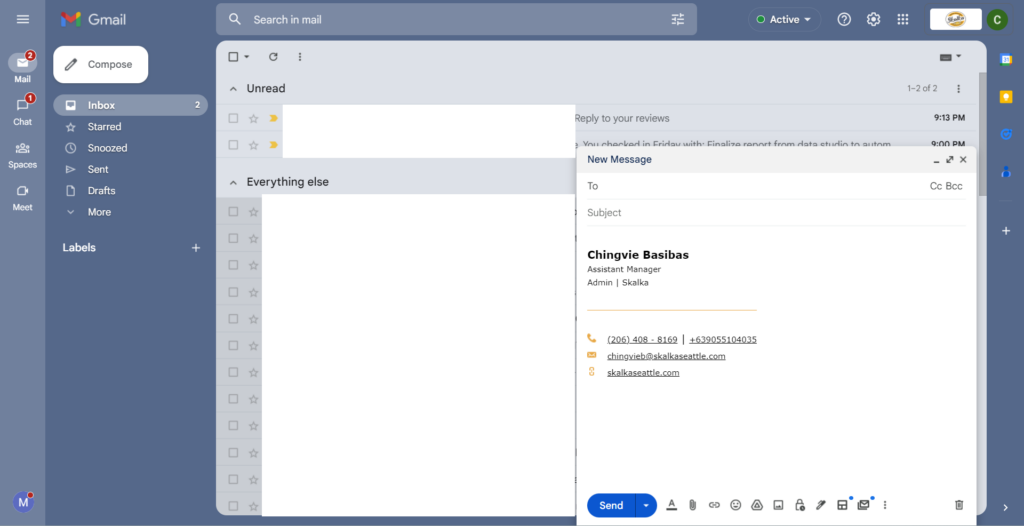
And Ta-da! You now have a signature.
For more references, you can follow this video: https://www.loom.com/share/ea2fdd1bcdb34a718afa58c0023c6411